

Samsung Galaxy F34 5G Firmware Download E346BXXU4GZI7 - SM-E346B Android 14 Stock ROM
Samsung Galaxy F34 5G | SM-E346B | Updated November 2026
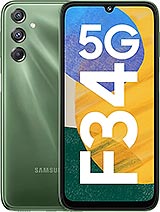
If a factory reset and a cache wipe have already failed, the next step for the Galaxy F34 5G is a complete Android 14 stock firmware install using Odin3 v3.14.4. The build string to match is E346BXXU4GZI7; the package is 6.3 GB and covers the DBT region. Use the package for a clean reinstall before selling the phone, so the next owner starts on a known official build.
Back up photos, chats, contacts and authenticator codes first, because a full flash wipes the internal storage. A slow first boot of five to ten minutes is normal after a full firmware write. Keep the extracted folder on the PC until the phone has booted normally at least once.
Required drivers and tools
Use the versions listed here unless the brand support page says otherwise. Mixing an old flashing tool with a new bootloader is the usual reason a flash fails at the first partition.
| Item | Version | Purpose |
|---|---|---|
| USB driver | Samsung USB Driver 1.7.3 | Lets Windows recognise the phone in download or fastboot mode. |
| Flashing tool | Odin3 v3.14.4 | Writes the firmware partitions and checks the package signature. |
| Archive tool | 7-Zip 24.08 | Extracts tar, tgz and zip packages without corrupting them. |
| PC requirements | Windows 10 or 11, 8 GB RAM, 15 GB free disk | Enough space for the archive, the extraction and the log files. |
Troubleshooting the installation
Most failed flashes fall into one of six patterns. Match the message on your screen with the table before you change anything on the phone.
| Problem | What to do |
|---|---|
| Phone boots straight to recovery after flashing | The data partition is encrypted with the old key. Perform a factory reset from recovery, then let the phone rebuild the partition. |
| Odin freezes at file analysis | The AP file was extracted with the wrong tool. Extract the ZIP again with 7-Zip and load the tar file directly, without renaming it. |
| Phone heats up and reboots during the flash | Stop the process, let the phone cool for twenty minutes and use a powered USB port. Heat during a write usually means the battery is failing. |
| No network service after the flash | The region code does not match the SIM. Flash the package for your country, or restore the modem backup if you made one. |
| SW REV CHECK FAIL appears on the phone | The package is older than the bootloader on the device. Download a build with an equal or higher revision, or the flash will be rejected every time. |
| Odin shows a PIT file error | The CSC file does not match the partition layout. Use the full four file package for SM-E346B and leave repartition unticked. |
If the phone shows a hardware fault such as a swollen battery, a cracked board or liquid damage, software cannot fix it. Stop and take the device to an authorised service centre.
Galaxy F34 5G firmware download links
Package E346BXXU4GZI7 is distributed as a ZIP (AP, BL, CP and CSC files) of 6.3 GB for Germany. The same archive is used for a repair install and for a clean reinstall, so you only need to download it once.
the official Samsung firmware support page
If the download stops halfway, delete the partial file and start again. A truncated archive is the most common cause of a checksum error in Odin.
Extract the ZIP with 7-Zip and load AP, BL, CP and CSC in Odin. Use HOME_CSC only when you want to keep user data.
Compatibility notes
Compatibility is decided by the model code, not by the name printed on the box. Read this list before you connect the phone.
- SM-E346B only. The package checks the model string before it writes anything, and a mismatch stops the flash.
- Dual SIM versions sold as SM-E346B/DSN use the same system image and are covered by this build.
- Regional codes INS (India), XME (Malaysia), XID (Indonesia), BTU (United Kingdom) share the same hardware, but flashing a different CSC changes carrier settings and may disable local features.
- Do not cross flash the 4G version of the Galaxy F34 5G. The modem firmware and partition table are different.
- Carrier locked units should stay on the CSC that matches the SIM lock, otherwise the phone may ask for a network code after boot.
Changes in this firmware
None of these changes alter the layout of the home screen, but several of them affect stability, heat and battery life.
- The package is a full ZIP (AP, BL, CP and CSC files) image, not an incremental OTA, so it repairs partition level corruption as well.
- App launch time and memory management changes are rolled into this build alongside the security patch.
- Charging behaviour at low battery percentages is tuned to reduce heat during fast charging.
- Touch response and proximity sensor behaviour during calls are recalibrated in this release.
- Runs Android 14 with One UI 6.1 on top, matching the firmware branch that shipped for this model.
- Network switching between 4G and 5G has been adjusted for carriers in Germany.
Firmware installation guide
The process below is the one that matches this package. Read every step before you touch the phone, and keep the log window visible so you can see where a failure happens.
- Install Samsung USB Driver 1.7.3 and Odin3 v3.14.4 on the PC, then restart the computer.
- Extract the downloaded ZIP. You should see files starting with AP, BL, CP and CSC.
- Power the phone off completely, then hold Volume Down and Power until the warning screen appears. Press Volume Up to enter Download Mode.
- Connect the USB cable. Odin should show a blue COM port in the ID:COM field within a few seconds.
- Click AP and select the AP file, then BL, CP and CSC in their matching slots. Use HOME_CSC instead of CSC if you want to keep data.
- Open the Options tab and confirm Auto Reboot and F. Reset Time are ticked. Leave Repartition unticked.
- Press Start and wait. The log will show each partition being written, followed by a green PASS message.
- The phone reboots on its own. Leave it alone for five to ten minutes while the first boot rebuilds the cache.
- If Odin fails at Setup Connection, change the USB port and cable, reinstall the driver and try again.
Firmware details at a glance
These are the details that matter before you download anything. Compare the model code and build string with the phone in your hand, not with a listing photo.
| Brand | Samsung |
| Model number | SM-E346B |
| Device | Galaxy F34 5G |
| Android version | Android 14 |
| OS version | One UI 6.1 |
| Firmware version | E346BXXU4GZI7 |
| Build number | E346BXXU4GZI7 |
| CSC build | E346BODX4GZI7 |
| Region / CSC | DBT (Germany) |
| Security patch | September 2026 |
| Firmware type | Official Stock ROM |
| File format | ZIP (AP, BL, CP and CSC files) |
| File size | 6.3 GB |
| Package contents | AP, BL, CP, CSC and HOME_CSC tar files |
| SHA-256 | d86814849c3d55481e4e0aa928f60707e04e749bd5b9fc4f9f67cb2ea8b86bd3 |
Firmware screenshots
The images below show the screens to compare before and after flashing. Keep the same file names and alt text if you replace them with your own captures so search engines can still match them to the model.

File name: galaxy-f34-5g-sm-e346b-about-phone.svg | Alt text: Samsung Galaxy F34 5G SM-E346B about phone screenshot

File name: galaxy-f34-5g-sm-e346b-software-information.svg | Alt text: Samsung Galaxy F34 5G SM-E346B software information screenshot

File name: galaxy-f34-5g-sm-e346b-firmware-package.svg | Alt text: Samsung Galaxy F34 5G SM-E346B firmware package screenshot

File name: galaxy-f34-5g-sm-e346b-flashing-tool.svg | Alt text: Samsung Galaxy F34 5G SM-E346B flashing tool screenshot
Answers before you flash
How do I confirm the Android version after flashing?
Open Settings, About phone and check the Android version and build number. They should read Android 14 and E346BXXU4GZI7.
Is a Google Drive mirror available?
Not for this build. Use the official brand support page linked above. Mirror copies are often repacked and cannot be trusted for a repair.
The file size looks different from the listing. What now?
Compare the SHA-256 value rather than the size in megabytes. Different browsers report compressed sizes slightly differently, but the hash must match exactly.
Do I need to root the phone first?
No. Root is not required and can actually cause the flash to fail on devices with verified boot. Use the official package on an unmodified phone.
Will flashing erase my data?
A full flash wipes the internal storage. If you load HOME_CSC instead of CSC, your files can survive, but a backup is still the safer choice.
How long does the first boot take?
Expect five to ten minutes. The phone rebuilds the runtime cache and verifies the system partition, so a slow first start is normal.
Is the bootloader unlocked by this process?
No. Flashing an official package does not unlock the bootloader, and on most Samsung models the bootloader stays locked unless you use the manufacturer's unlock programme.
